
Add Tickets
Create and customise your ticket types with detailed settings to suit your event.
Admission Tickets
- Under Ticket Types, select + to add Admission Tickets.
- Enter ticket details such as ticket name, description, quantity limit and styling options.
- Set the Ticketing status to control when the ticket becomes available.
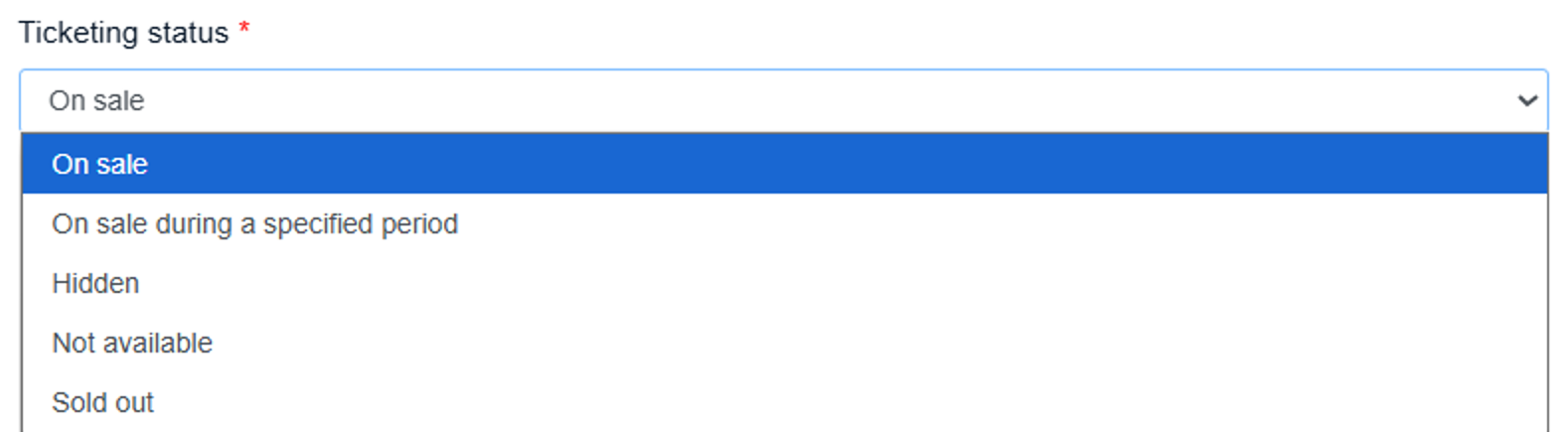
- If this ticket is compulsory for registration, check Requires minimum order:
- This ticket will be automatically pre-selected when attendees reach the ticketing page.
- Ideal for events where an admission ticket must be purchased before selecting tickets for optional events e.g., optional workshops.
- You can also define a minimum and maximum number of tickets per order.
- Choose a Pricing Type:
- Paid – Set a fixed price.
- Free – No cost for the ticket.
- Donation – Let attendees choose their own amount.
- Click Add to complete the setup and your ticket will be shown as below.
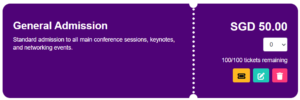
Note: Upon the first sale of the ticket type, Pricing Type can no longer be changed.
Edit or Delete Tickets
To make changes to a ticket, select the Edit icon on the ticket preview. You can update any ticket details, including name, pricing, availability, or order limits.
To remove a ticket, select the Delete icon.
Note: Once a ticket has been sold, it can no longer be deleted. To prevent further sales, edit the ticket and update the Ticketing Status to Hidden, Not Available or Sold Out instead.
Extras
Extras are optional add-ons, such as workshops or seminars, that attendees can purchase together with an admission ticket. Extras do not affect the admission ticket quantity and cannot be purchased on their own.
Promotions
Offer discounts to your attendees through two types of promotions:
- Ticket-level Promotion
Applies to specific ticket types only. Use this to offer targeted discounts (e.g., 10% off VIP tickets). - Order-level Promotion
Applies to an entire order at checkout (e.g., $10 or 10% off) from the subtotal before checkout.
Use promotions strategically to drive early sign-ups, reward specific groups, or boost overall ticket sales.
Ticket-level Promotion
Apply a promotion to specific ticket types.
To add a ticket-specific promotion:
- Click the Ticket-level Promotion icon on the ticket preview.
- In the pop-up window, configure your promotion settings:
- Coupon code (optional)
- Discount type (e.g., percentage or fixed amount)
- Promotion limit
- Promotion status
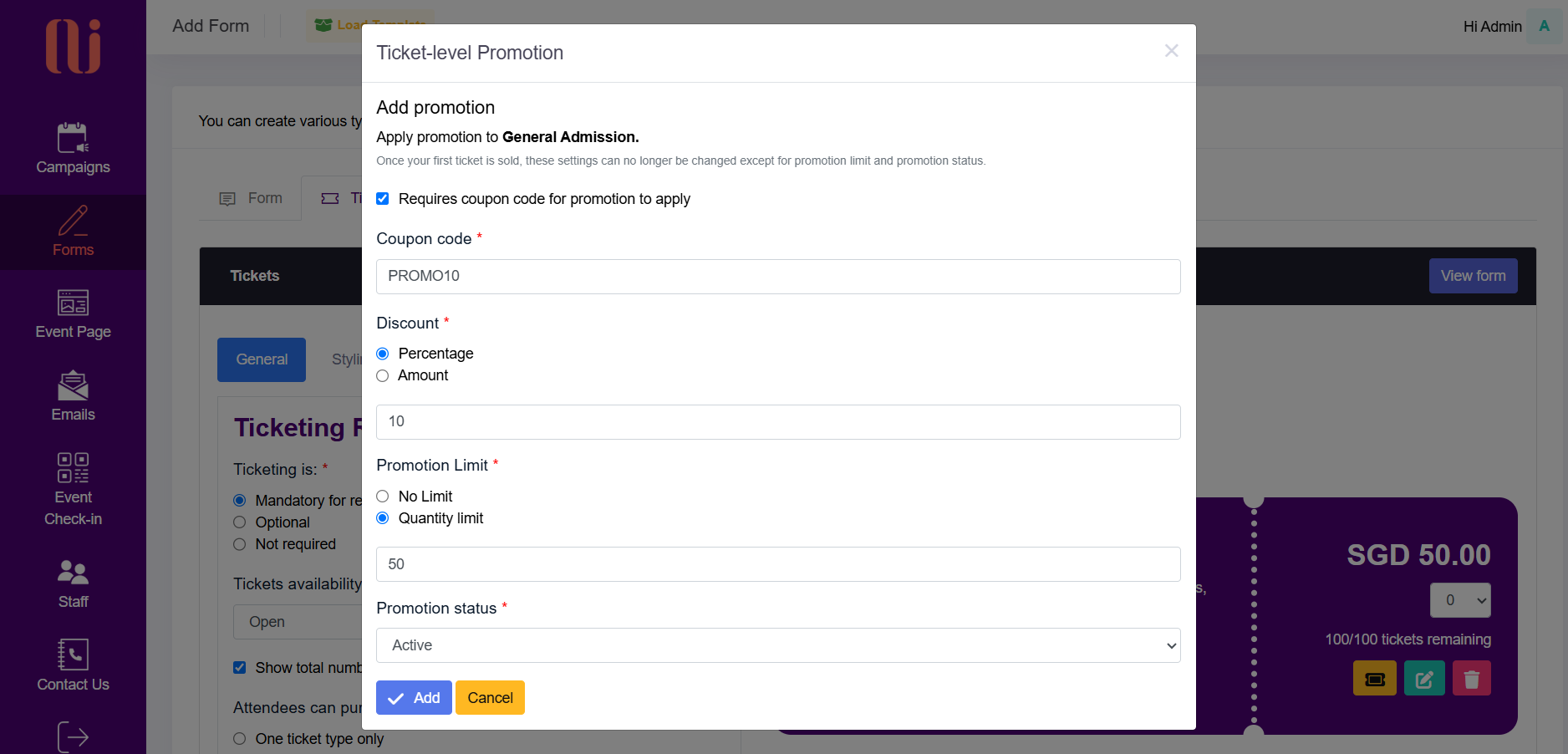
- Click Add to apply the promotion. Once saved, the promotion details will appear on the ticket preview.
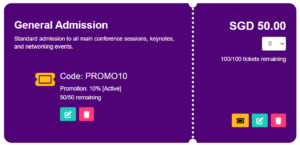
Note: Ticket-level promotion redemptions are counted per ticket, not per order. If a promotion is applied to multiple eligible tickets within the same transaction, each ticket is counted as a separate redemption.
Example: If an attendee purchases 3 eligible tickets using the same promotion code, it will count as 3 redemptions.
To update the promotion, click the Edit icon on the ticket preview.
Important: Upon the first ticket sale, promotions cannot be deleted. To hide or disable it, update the Promotion Status to Not Available.
Order-level Promotion
Apply a promotion to the entire order.
To set up a general promotion:
- Under Order-level Promotion, select + to add this promotion.
- In the pop-up window, configure your promotion settings:
- Coupon code (optional)
- Discount type (e.g., percentage or fixed amount)
- Promotion limit
- Promotion status
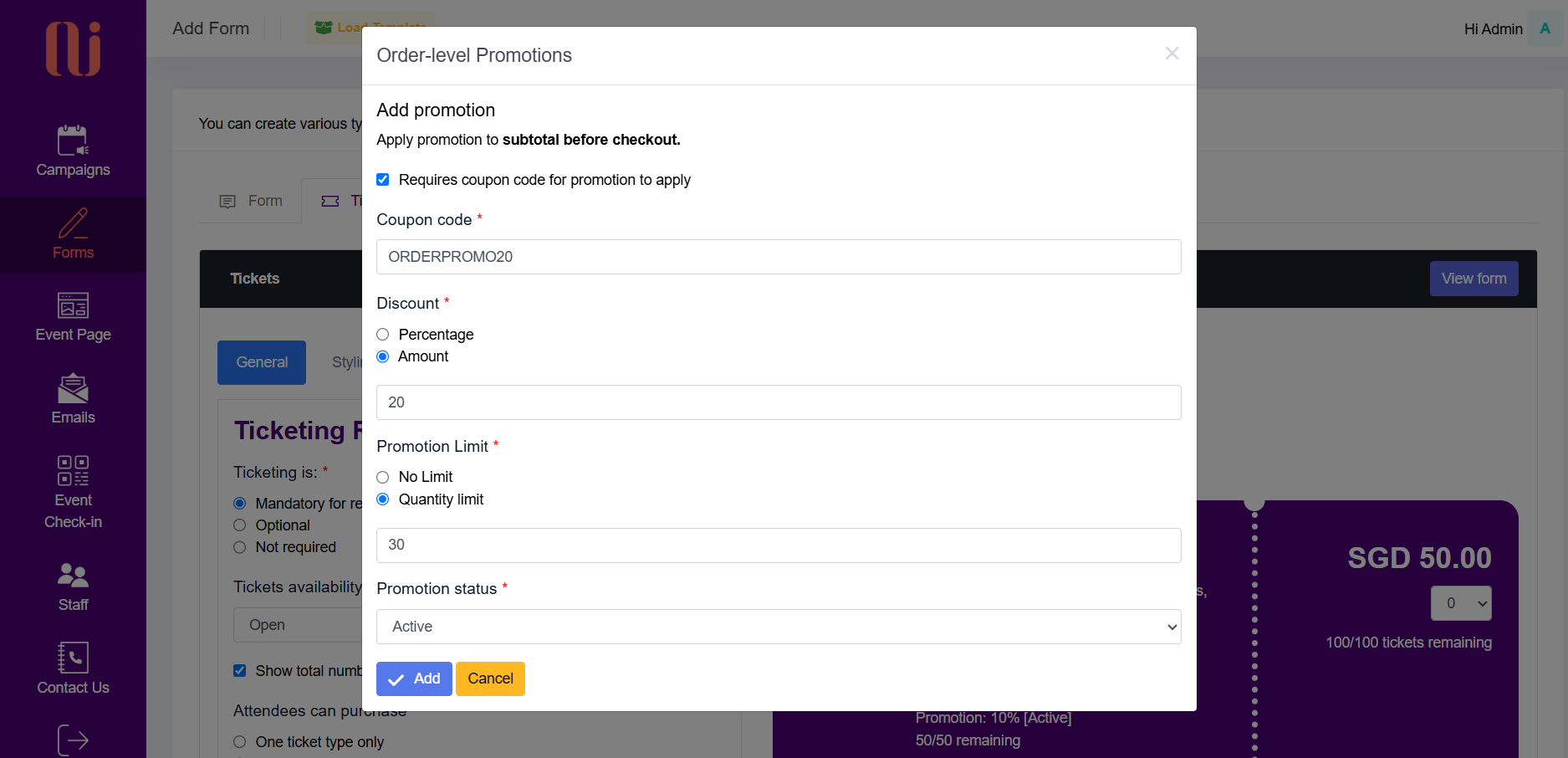
- Click Add to complete the setup. To make changes, click the Edit icon.
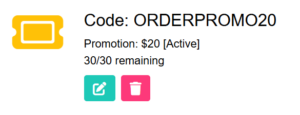
Note: Upon the first ticket sale, promotions cannot be deleted. To remove it from use, set the Promotion Status to Not Available.
Styling
Customise the look and feel of your ticketing section to match your event branding.
- Go to the Styling tab
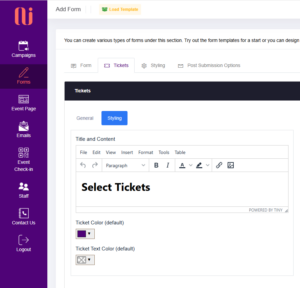
- Customise title, texts and images under Title and Content, which appears above the tickets.
- Set your default Ticket Colour and Ticket Text Colour.
- These styles will apply across all ticket types by default.
- For individual ticket styling, adjust colours within each ticket setup page.
Ticketing Report
The Ticketing Report provides a comprehensive overview of your ticket sales and can be exported as an Excel file. The report includes:
- Transaction by order
- Transactions by ticket type
- A summary of promotion redemptions
To download the Ticketing Report:
- From your main dashboard, go to Forms, then select Tickets icon
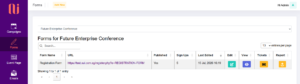
- Select Export to Excel
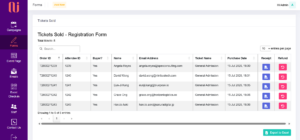
You can also retrieve and download ticket receipts directly from this page.
Ticketing Refunds
To refund a ticket order:
- From your main dashboard, go to Forms, then select Tickets icon
- Locate the required Order ID and select Refund. All tickets purchased under the selected order will be displayed.
- Enter a Refund Reason which will be included in the ticketing report for reference.
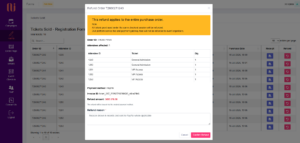
- Select Confirm Refund to process the refund. The refund will be issued to the attendee via their original payment method.
- A Refund Receipt will automatically be sent to the attendee’s email address.
- OUI platform service fee and payment gateway fees will not be refunded to event organisers.
Important: Refunds are processed at the order level. All tickets purchased within the same order will be refunded together, and this action cannot be undone.